Core Workflow: Read, Inspect, View, Write
This section introduces the core OMIO workflow using single image files. It covers reading image data, inspecting and modifying metadata, visualizing images in Napari, and writing OME-TIFF output files.
Hello World
OMIO has a simple hello_world() function to verify that the installation
was successful:
import omio as om
import pprint
om.hello_world()
The command above should print something like:
>>>
Hello from omio.py! OMIO version: 0.1.0
If you see this message, OMIO is correctly installed and ready to use. Note that the version number may vary depending on the installed version.
Single File Reading and Metadata Inspection
To open a single file such as a TIFF file, use the imread function. This function
returns the image data as a NumPy array (by default) along with the associated metadata
as a dictionary.
fname = "example_data/tif_cell_single_tif/13374.tif"
image, metadata = om.imread(fname)
print(f"Image shape: {image.shape}")
>>>
Image shape: (1, 35, 3, 328, 340)
imread automatically interprets the OME metadata stored in the TIFF file and
re-arranges the image axes to follow the OME axis order convention:
(Time, Channel, Z depth, Y height, X width).
If any of these axes are singleton (i.e. size 1), they are retained in the returned image array to preserve the full 5D structure. This ensures OME compliance and thus compatibility with downstream OME-based pipelines.
imread always returns the read image data (as a NumPy array by default) and the
associated metadata as a dictionary. The metadata dictionary contains OME-relevant
entries such as PhysicalSizeX, PhysicalSizeY, PhysicalSizeZ,
TimeIncrement, and Channels. OMIO always assigns these entries and tries to infer
missing metadata from the available information in the file or by assigning predefined
defaults, which can be customized by the user upon function call.
Let’s inspect some of the read metadata:
print(f"Metadata keys: {list(metadata.keys())}")
pprint.pprint(metadata)
>>>

Metadata keys: ['SizeX', 'SizeY', 'SizeZ', 'SizeC', 'SizeT', 'PhysicalSizeX', 'PhysicalSizeY', 'PhysicalSizeZ', 'PhysicalSizeXUnit', 'PhysicalSizeYUnit', 'PhysicalSizeZUnit', 'TimeIncrement', 'TimeIncrementUnit', 'Channel_Count', 'Annotations', 'shape', 'axes']

{'Annotations': {'Namespace': 'omio:metadata',
               'OMIO_MultiSeriesDetected': False,
               'OMIO_VERSION': '0.1.4',
               'original_creation_or_change_date': '2025-12-24T11:54:38',
               'original_filename': '13374.tif',
               'original_filetype': 'tif',
               'original_metadata_type': 'OME_XML',
               'original_parentfolder': 'example_data/tif_cell_single_tif',
               'spacing': 1.0,
               'unit': 'micron'},
'Channel_Count': 0,
'PhysicalSizeX': 1.0,
'PhysicalSizeXUnit': 'micron',
'PhysicalSizeY': 1.0,
'PhysicalSizeYUnit': 'micron',
'PhysicalSizeZ': 1.0,
'PhysicalSizeZUnit': 'micron',
'SizeC': 3,
'SizeT': 1,
'SizeX': 340,
'SizeY': 328,
'SizeZ': 35,
'TimeIncrement': 0.0,
'TimeIncrementUnit': 'seconds',
'axes': 'TZCYX',
'shape': (1, 35, 3, 328, 340)}
You may notice that imread has, apart from the correct and OME-compliant axis order
and physical size entries in microns, also added an entry called "Annotations" that
contains additional metadata parsed from the TIFF file.
OMIO tries to extract as much metadata as possible from the file and store it in a
structured manner in the metadata dictionary. Any non-OME metadata is stored under the
"Annotations" key to avoid conflicts with standard OME entries, while preserving
potentially valuable information for downstream processing.
Of course, you can always add or change metadata entries as needed. For example, let’s
add an "Experimenter" entry to the metadata dictionary:
metadata["Experimenter"] = "Your Name"
pprint.pprint(metadata)
>>>

{'Annotations': {'Namespace': 'omio:metadata',
               'OMIO_MultiSeriesDetected': False,
               'OMIO_VERSION': '0.1.4',
               'original_creation_or_change_date': '2025-12-24T11:54:38',
               'original_filename': '13374.tif',
               'original_filetype': 'tif',
               'original_metadata_type': 'OME_XML',
               'original_parentfolder': 'example_data/tif_cell_single_tif',
               'spacing': 1.0,
               'unit': 'micron'},
'Channel_Count': 0,
'Experimenter': 'Your Name',
'PhysicalSizeX': 1.0,
'PhysicalSizeXUnit': 'micron',
'PhysicalSizeY': 1.0,
'PhysicalSizeYUnit': 'micron',
'PhysicalSizeZ': 1.0,
'PhysicalSizeZUnit': 'micron',
'SizeC': 3,
'SizeT': 1,
'SizeX': 340,
'SizeY': 328,
'SizeZ': 35,
'TimeIncrement': 0.0,
'TimeIncrementUnit': 'seconds',
'axes': 'TZCYX',
'shape': (1, 35, 3, 328, 340)}
If we would save image and its associated metadata back to an OME-TIFF file, this
additional "Experimenter" entry would not be written, as it is not part of the OME
standard.
However, OMIO offers a check-up function called OME_metadata_checkup() that normalizes
the metadata dictionary to be fully OME-compliant by moving any non-OME entries under the
"Annotations" key:
metadata = om.OME_metadata_checkup(metadata)
pprint.pprint(metadata)
>>>

{'Annotations': {'Experimenter': 'Your Name',
               'Namespace': 'omio:metadata',
               'OMIO_MultiSeriesDetected': False,
               'OMIO_VERSION': '0.1.4',
               'original_creation_or_change_date': '2025-12-24T11:54:38',
               'original_filename': '13374.tif',
               'original_filetype': 'tif',
               'original_metadata_type': 'OME_XML',
               'original_parentfolder': 'example_data/tif_cell_single_tif',
               'spacing': 1.0,
               'unit': 'micron'},
'Channel_Count': 0,
'PhysicalSizeX': 1.0,
'PhysicalSizeXUnit': 'micron',
'PhysicalSizeY': 1.0,
'PhysicalSizeYUnit': 'micron',
'PhysicalSizeZ': 1.0,
'PhysicalSizeZUnit': 'micron',
'SizeC': 3,
'SizeT': 1,
'SizeX': 340,
'SizeY': 328,
'SizeZ': 35,
'TimeIncrement': 0.0,
'TimeIncrementUnit': 'seconds',
'axes': 'TZCYX',
'shape': (1, 35, 3, 328, 340)}
Opening Images in Napari and Metadata Modification
OMIO comes with built-in support to open images directly in Napari for interactive visualization. Let’s open the previously read image in Napari:
om.open_in_napari(image, metadata, fname)
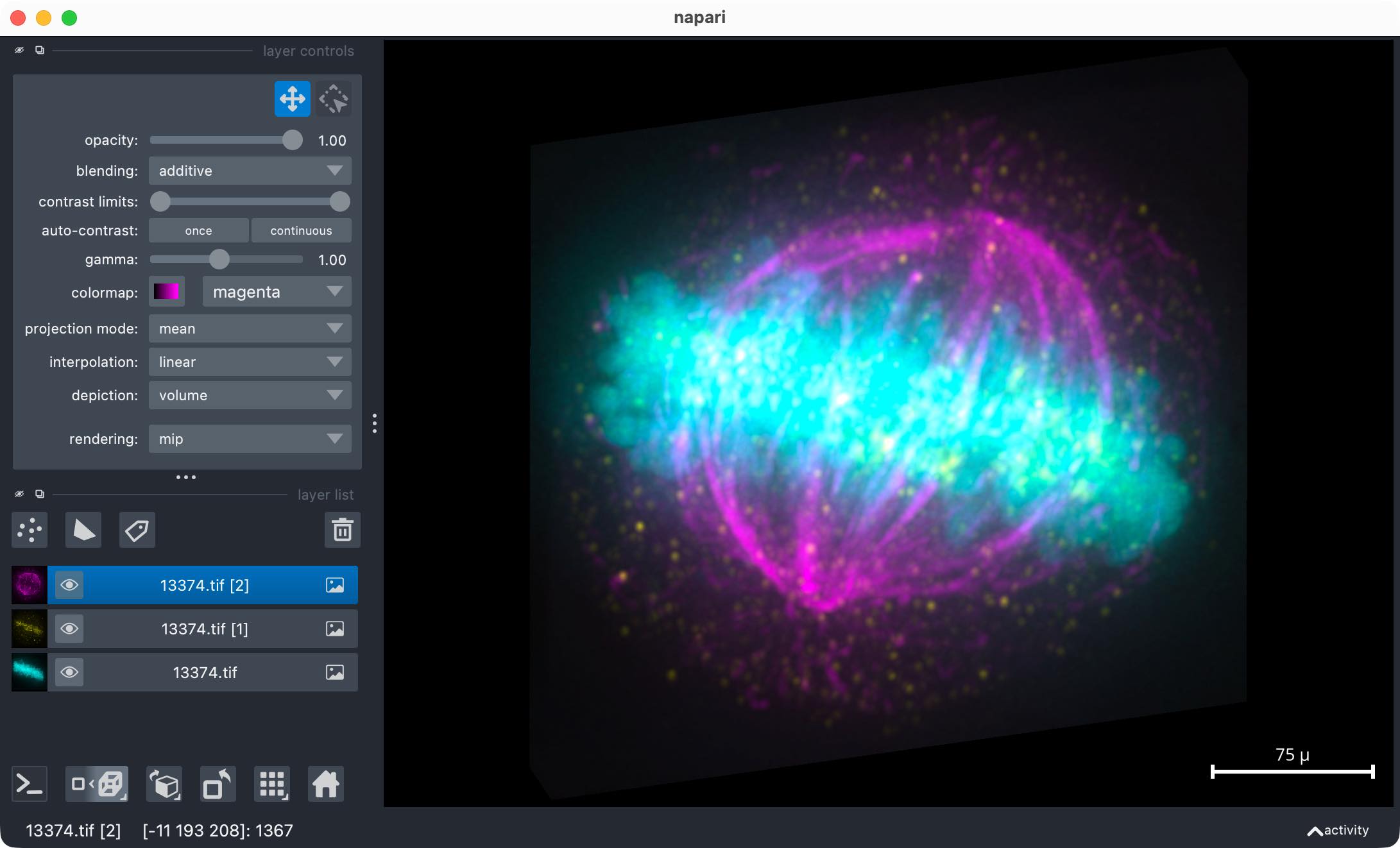
For demonstration purposes, we change the PhysicalSizeZ metadata entry to an
incorrect value and re-open the image in Napari to see that Napari correctly rescales
the Z axis based on the provided metadata:
print(f"Original PhysicalSizeZ: {metadata['PhysicalSizeZ']} microns")
metadata["PhysicalSizeZ"] = 5  # wrong value in microns
print(f"Modified PhysicalSizeZ: {metadata['PhysicalSizeZ']} microns")
om.open_in_napari(image, metadata, fname)
If you do not want to see terminal output from OMIO, you can set verbose=False in any
OMIO function call. For example:
om.open_in_napari(image, metadata, fname, verbose=False)
Ensured OME Compliance upon Reading
OMIO ensures OME compliance of the read image and metadata upon reading. This applies regardless of whether the input file is already OME-compliant, has incomplete OME metadata, or does not contain any OME metadata at all.
This also applies to non-OME formats such as Zeiss CZI files or Thorlabs RAW files, and it does not matter whether the input image is 2D (XY), 3D (Z stack), 4D (time lapse or multichannel), or 5D (time lapse multichannel Z stack).
The example data folder tif_dummy_data/tif_single_files contains several TIFF files
with different dimensionalities. These files were generated using
additional_scripts/generate_dummy_tif_files.py and do not contain ImageJ Hyperstack
or OME-TIFF metadata.
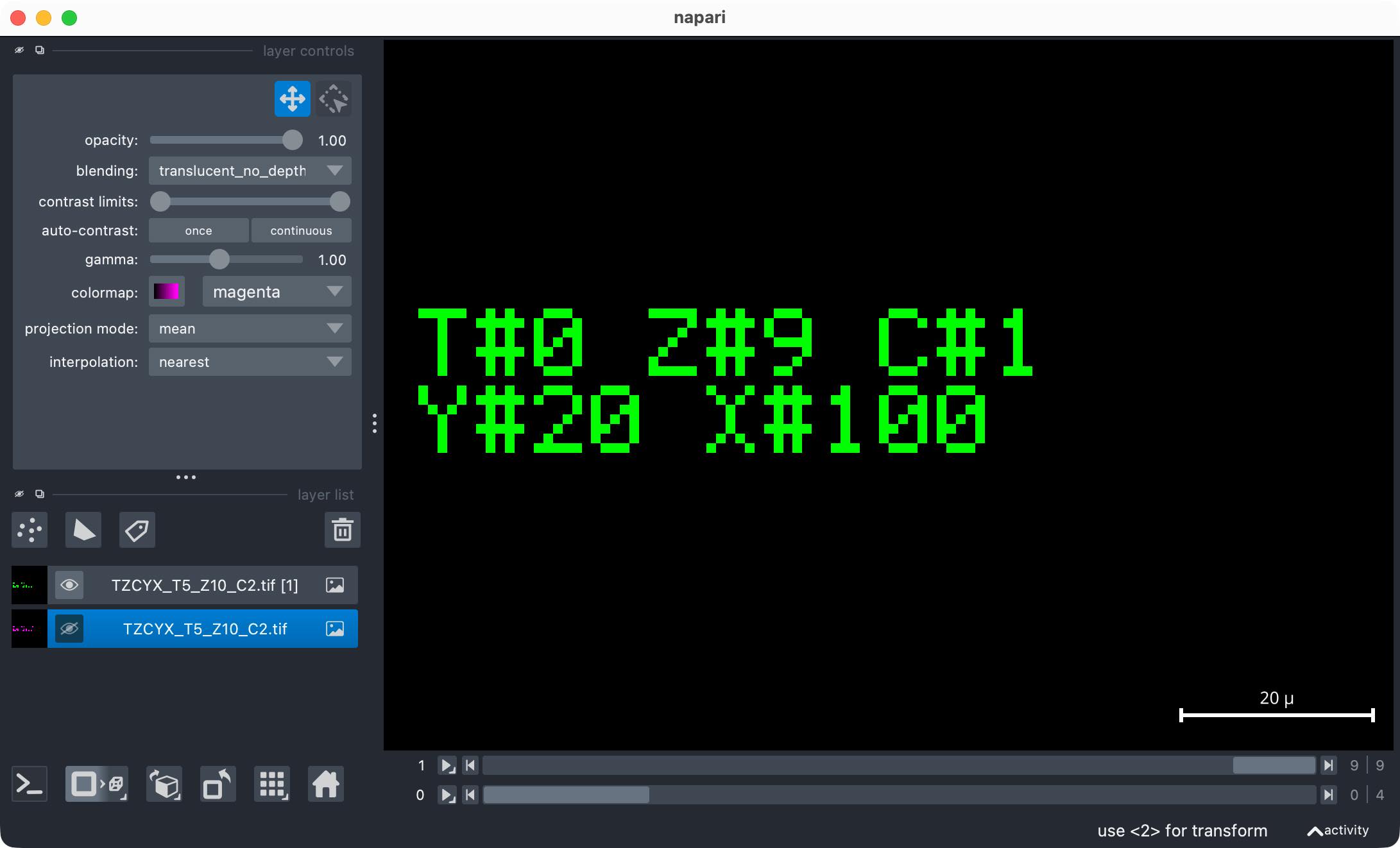
fname_5d = "example_data/tif_dummy_data/tif_single_files/TZCYX_T5_Z10_C2.tif"
image_5d, metadata_5d = om.imread(fname_5d)
print(f"5D Image shape: {image_5d.shape} with axes {metadata_5d.get('axes', 'N/A')}")
pprint.pprint(metadata_5d)
om.open_in_napari(image_5d, metadata_5d, fname_5d)
Output (only the printed shape and axes shown here):
>>>

5D Image shape: (5, 10, 2, 20, 100) with axes TZCYX
fname_2d = "example_data/tif_dummy_data/tif_single_files/YX.tif"
image_2d, metadata_2d = om.imread(fname_2d)
print(f"2D Image shape: {image_2d.shape} with axes {metadata_2d.get('axes', 'N/A')}")
pprint.pprint(metadata_2d)
om.open_in_napari(image_2d, metadata_2d, fname_2d)
Output (only the printed shape and axes shown here):
>>>

2D Image shape: (1, 1, 1, 20, 100) with axes TZCYX
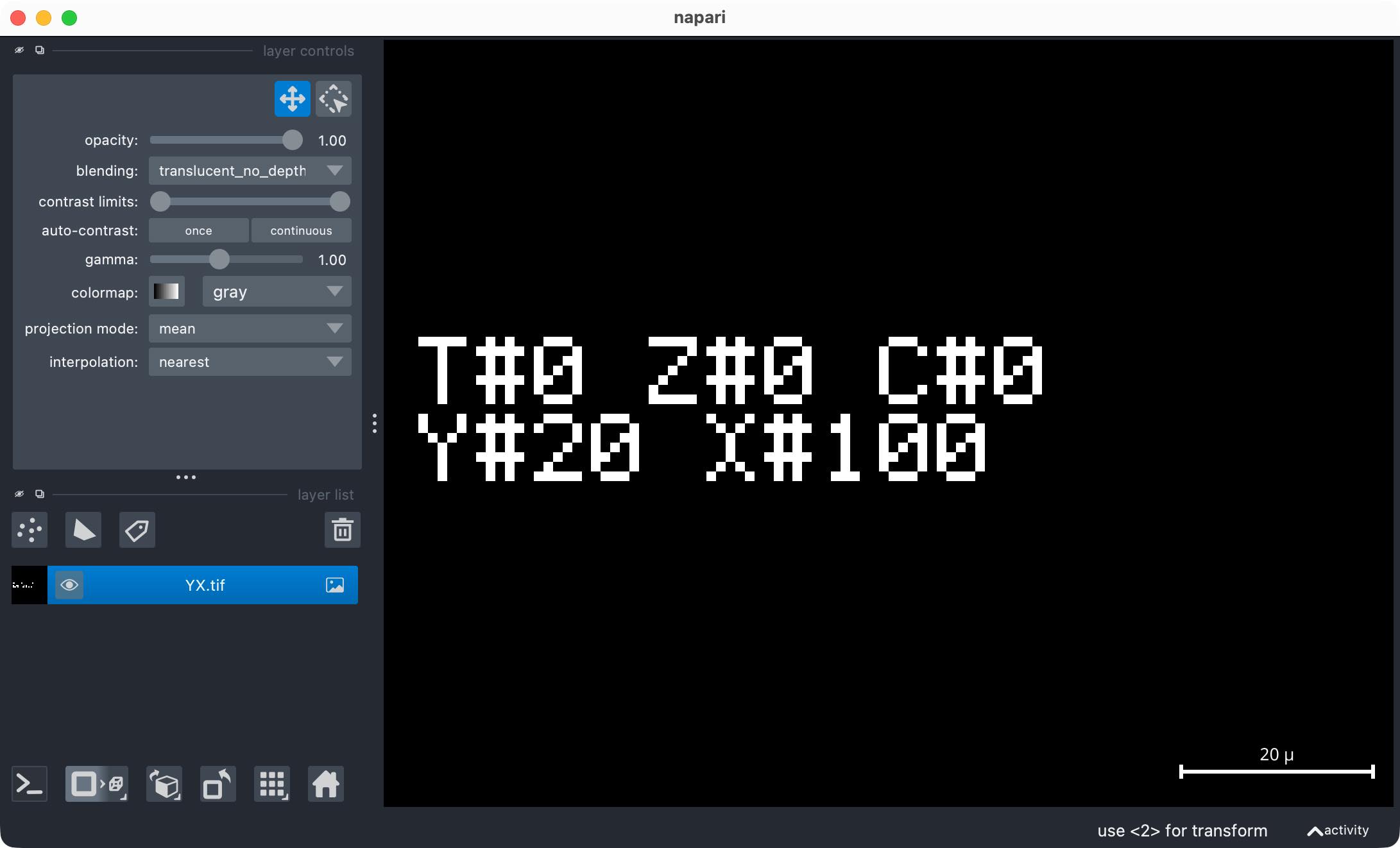
As shown above, OMIO correctly infers OME-compliant axes and adds default OME metadata entries as needed. The resulting read images are always 5D NumPy arrays with axes in the OME order TZCYX.
Let’s also try TIFF files with ImageJ Hyperstack metadata. These files contain additional singleton axes (S) required for ImageJ compatibility:
fname_4d = "example_data/tif_dummy_data/tif_with_ImageJ/TYXS_T1.tif"
image_4d, metadata_4d = om.imread(fname_4d)
print(f"4D Image shape: {image_4d.shape} with axes {metadata_4d.get('axes', 'N/A')}")
pprint.pprint(metadata_4d)
om.open_in_napari(image_4d, metadata_4d, fname_4d)
Terminal output during the reading process (verbose=True by default):
>>>

Reading TIFF fully into RAM...
   Found XResolution tag with value: (4294967295, 816043786)
   Found YResolution tag with value: (4294967295, 816043786)
   Found ResolutionUnit tag with value: 1
      Calculated PhysicalSizeX = 0.18999999998835845 micron
      Calculated PhysicalSizeY = 0.18999999998835845 micron
WARNING: PhysicalSizeZ missing in metadata; setting to default or user-provided value: 1.0
Correcting for OME axes order...
   Got NumPy array as input. Will return reordered NumPy array.
Finished reading TIFF.
The image file contains no additional metadata about physical sizes, so OMIO calculates
PhysicalSizeX and PhysicalSizeY from the TIFF resolution tags. If this fails, OMIO
assigns default values (1.0 micron) and gives a warning. The resulting output then is:
>>>

4D Image shape: (1, 1, 3, 20, 100) with axes TZCYX

{'Annotations': {'ImageJ': '1.11a',
               'Namespace': 'omio:metadata',
               'OMIO_MultiSeriesDetected': False,
               'OMIO_VERSION': '0.1.4',
               'hyperstack': True,
               'images': 1,
               'original_creation_or_change_date': '2025-12-27T16:57:29',
               'original_filename': 'TYXS_T1.tif',
               'original_filetype': 'tif',
               'original_metadata_type': 'imagej_metadata',
               'original_parentfolder': 'example_data/tif_dummy_data/tif_with_ImageJ',
               'spacing': 1.0,
               'unit': 'micron'},
'PhysicalSizeX': 0.18999999998835845,
'PhysicalSizeXUnit': 'micron',
'PhysicalSizeY': 0.18999999998835845,
'PhysicalSizeYUnit': 'micron',
'PhysicalSizeZ': 1.0,
'PhysicalSizeZUnit': 'micron',
'SizeC': 3,
'SizeT': 1,
'SizeX': 100,
'SizeY': 20,
'SizeZ': 1,
'axes': 'TZCYX',
'shape': (1, 1, 3, 20, 100)}
The same accounts for the following 6D TIFF files with ImageJ Hyperstack metadata (if any):
fname_6d = "example_data/tif_dummy_data/tif_with_ImageJ/TZCYXS_C1_Z10_T2.tif"
image_6d, metadata_6d = om.imread(fname_6d)
print(f"6D Image shape: {image_6d.shape} with axes {metadata_6d.get('axes', 'N/A')}")
pprint.pprint(metadata_6d)
om.open_in_napari(image_6d, metadata_6d, fname_6d)
Output (only the printed shape and axes shown here):
>>>

6D Image shape: (2, 10, 3, 20, 100) with axes TZCYX
Due to the extra singleton axes, these files were saved, upon generation, with photometric
interpretation rgb instead of minisblack. imread therefore interprets them as
three-channel images. If the image additionally contains more than one channel axis, this
results in multiple channel axes in the read image. This behavior is intentional. OMIO always
tries to retain the full dimensionality of the image to avoid any loss of information:
fname_6d = "example_data/tif_dummy_data/tif_with_ImageJ/TZCYXS_T5_Z10_C2.tif"
image_6d, metadata_6d = om.imread(fname_6d)
print(f"6D Image shape: {image_6d.shape} with axes {metadata_6d.get('axes', 'N/A')}")
pprint.pprint(metadata_6d)
om.open_in_napari(image_6d, metadata_6d, fname_6d)
Output (only the printed shape and axes shown here):
>>>

6D Image shape: (5, 10, 6, 20, 100) with axes TZCYX
Let’s also open an OME-TIFF file:
fname_ometiff = "example_data/tif_dummy_data/ome_tif/TZCYX_T5_Z10_C2.ome.tif"
image_ometiff, metadata_ometiff = om.imread(fname_ometiff)
print(f"OME-TIFF Image shape: {image_ometiff.shape} with axes {metadata_ometiff.get('axes', 'N/A')}")
pprint.pprint(metadata_ometiff)
om.open_in_napari(image_ometiff, metadata_ometiff, fname_ometiff)
Output:
>>>

OME-TIFF Image shape: (5, 10, 2, 20, 100) with axes TZCYX

{'Annotations': {'Namespace': 'omio:metadata',
               'OMIO_MultiSeriesDetected': False,
               'OMIO_VERSION': '0.1.4',
               'original_creation_or_change_date': '2025-12-27T16:57:29',
               'original_filename': 'TZCYX_T5_Z10_C2.ome.tif',
               'original_filetype': 'tif',
               'original_metadata_type': 'OME_XML',
               'original_parentfolder': 'example_data/tif_dummy_data/ome_tif',
               'spacing': 2.0,
               'unit': 'micron'},
'Channel_Count': 2,
'PhysicalSizeX': 0.19,
'PhysicalSizeXUnit': 'micron',
'PhysicalSizeY': 0.19,
'PhysicalSizeYUnit': 'micron',
'PhysicalSizeZ': 2.0,
'PhysicalSizeZUnit': 'micron',
'SizeC': 2,
'SizeT': 5,
'SizeX': 100,
'SizeY': 20,
'SizeZ': 10,
'TimeIncrement': 3.0,
'TimeIncrementUnit': 's',
'axes': 'TZCYX',
'shape': (5, 10, 2, 20, 100)}
Ensured OME Compliance upon Writing
OMIO’s writing function imwrite also ensures OME compliance of the written image and
metadata.
fname_2d = "example_data/tif_dummy_data/tif_single_files/YX.tif"
image_2d, metadata_2d = om.imread(fname_2d)
print(f"2D Image shape: {image_2d.shape} with axes {metadata_2d.get('axes', 'N/A')}")

om.imwrite(fname_2d, image_2d, metadata_2d, relative_path="omio_converted")
imwrite requires, at minimum, the image data, the associated metadata dictionary, and
the output file name. By default, overwrite is set to False, so existing files are
not overwritten. Instead, OMIO appends a numeric suffix to the file name.
A relative_path argument can be provided to write the converted OME-TIFF file into a
subfolder of the input file’s directory. The written file receives the extension
.ome.tif.
Let’s inspect the written OME-TIFF file:
fname_2d_written = "example_data/tif_dummy_data/tif_single_files/omio_converted/YX.ome.tif"
image_2d_written, metadata_2d_written = om.imread(fname_2d_written)
pprint.pprint(metadata_2d_written)
om.open_in_napari(image_2d_written, metadata_2d_written, fname_2d_written)
Output:
>>>

{'Annotations': {'Namespace': 'omio:metadata',
               'OMIO_MultiSeriesDetected': False,
               'OMIO_VERSION': '0.1.4',
               'original_creation_or_change_date': '2025-12-27T16:57:29',
               'original_filename': 'YX.tif',
               'original_filetype': 'tif',
               'original_metadata_type': 'N/A',
               'original_parentfolder': 'example_data/tif_dummy_data/tif_single_files',
               'spacing': 1.0,
               'unit': 'micron'},
'Channel_Count': 1,
'PhysicalSizeX': 1.0,
'PhysicalSizeXUnit': 'micron',
'PhysicalSizeY': 1.0,
'PhysicalSizeYUnit': 'micron',
'PhysicalSizeZ': 1.0,
'PhysicalSizeZUnit': 'micron',
'SizeC': 1,
'SizeT': 1,
'SizeX': 100,
'SizeY': 20,
'SizeZ': 1,
'TimeIncrement': 0.0,
'TimeIncrementUnit': 'seconds',
'axes': 'TZCYX',
'shape': (1, 1, 1, 20, 100)}
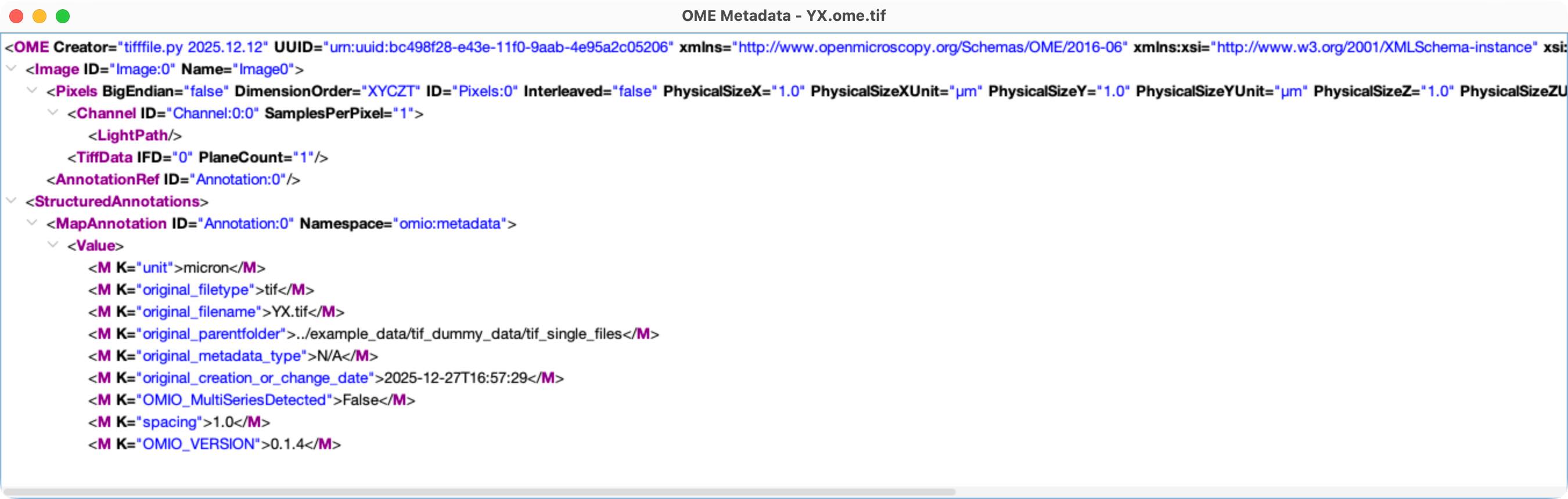
The written OME-TIFF file can be opened in any OME-compliant software such as ImageJ or
Fiji. When using drag and drop, Fiji does not correctly interpret the physical unit
microns and displays pixels instead. This is a known limitation of Fiji’s SCIFIO
library. Using the Bio-Formats Importer correctly interprets the physical unit.
|
|
The imconvert Convenience Function
OMIO also provides a convenience function called imconvert that combines reading and
writing in a single step.
fname_5d = "example_data/tif_dummy_data/tif_single_files/TZCYX_T5_Z10_C2.tif"
om.imconvert(fname_5d, relative_path="omio_converted")
imconvert accepts all arguments of both imread and imwrite, allowing full
control over reading and writing behavior.
An additional optional argument called return_fnames (default False) returns the
output file names upon conversion for further downstream processing:
output_fnames = om.imconvert(fname_5d, relative_path="omio_converted", return_fnames=True)
print(f"Converted file names: {output_fnames}")
Output:
>>>

Converted file names: ['example_data/tif_dummy_data/tif_single_files/omio_converted/TZCYX_T5_Z10_C2 2.ome.tif']