Large File Handling and Out of Core Workflows
OMIO provides explicit support for working with large image data that do not fit into main memory. This includes Zarr-backed lazy loading, optional memory mapping on disk, and efficient visualization of large datasets in napari.
The examples below assume the following imports:
import omio as om
import pprint
Read Large Files Lazily With Zarr Backend
OMIO supports reading large image files that do not fit into memory by Zarr-backed lazy loading and optional memory mapping on disk.
To read a large TIFF file lazily, use the imread function with the
zarr_store="memory" or zarr_store="disk" argument:
fname = "example_data/tif_large_Ca_imaging_large/1MP_SIMPLE_Stephan__001_001.tif"
image_lazy, metadata_lazy = om.imread(fname, zarr_store="memory")

print(f"Lazy image shape: {image_lazy.shape}")
print(f"Lazy image type: {type(image_lazy)}")

image_lazy
>>>
Lazy image shape: (1, 2000, 1, 355, 350)
Lazy image type: <class 'zarr.core.array.Array'>

<Array <FsspecStore(AsyncFileSystemWrapper, /14069212288)> shape=(1, 2000, 1, 355, 350) dtype=uint16>
You can now manipulate image_lazy as a Zarr array without loading the entire dataset
into memory. For example, you can read a small chunk of the data:
sub_stack = image_lazy[0, 0:10, 0:100, 0:100]
print(f"Sub-stack shape: {sub_stack.shape}")
With zarr_store="disk", imread creates a temporary Zarr store on disk and
memory-maps the data for efficient access. The default location of that temporary Zarr
store is the parent directory of fname, where a folder called .omio_cache
is created to hold the temporary data:
image_lazy_memmap, metadata_lazy_memmap = om.imread(fname, zarr_store="disk")
print(f"Lazy memmap image shape: {image_lazy_memmap.shape}")
print(f"Lazy memmap image type: {type(image_lazy_memmap)}")

image_lazy_memmap
>>>
Lazy memmap image shape: (1, 2000, 1, 355, 350)
Lazy memmap image type: <class 'zarr.core.array.Array'>

<Array file://example_data/tif_large_Ca_imaging_large/.omio_cache/1MP_SIMPLE_Stephan__001_001.zarr shape=(1, 2000, 1, 355, 350) dtype=uint16>
om.open_in_napari(image_lazy_memmap, metadata_lazy_memmap, fname)
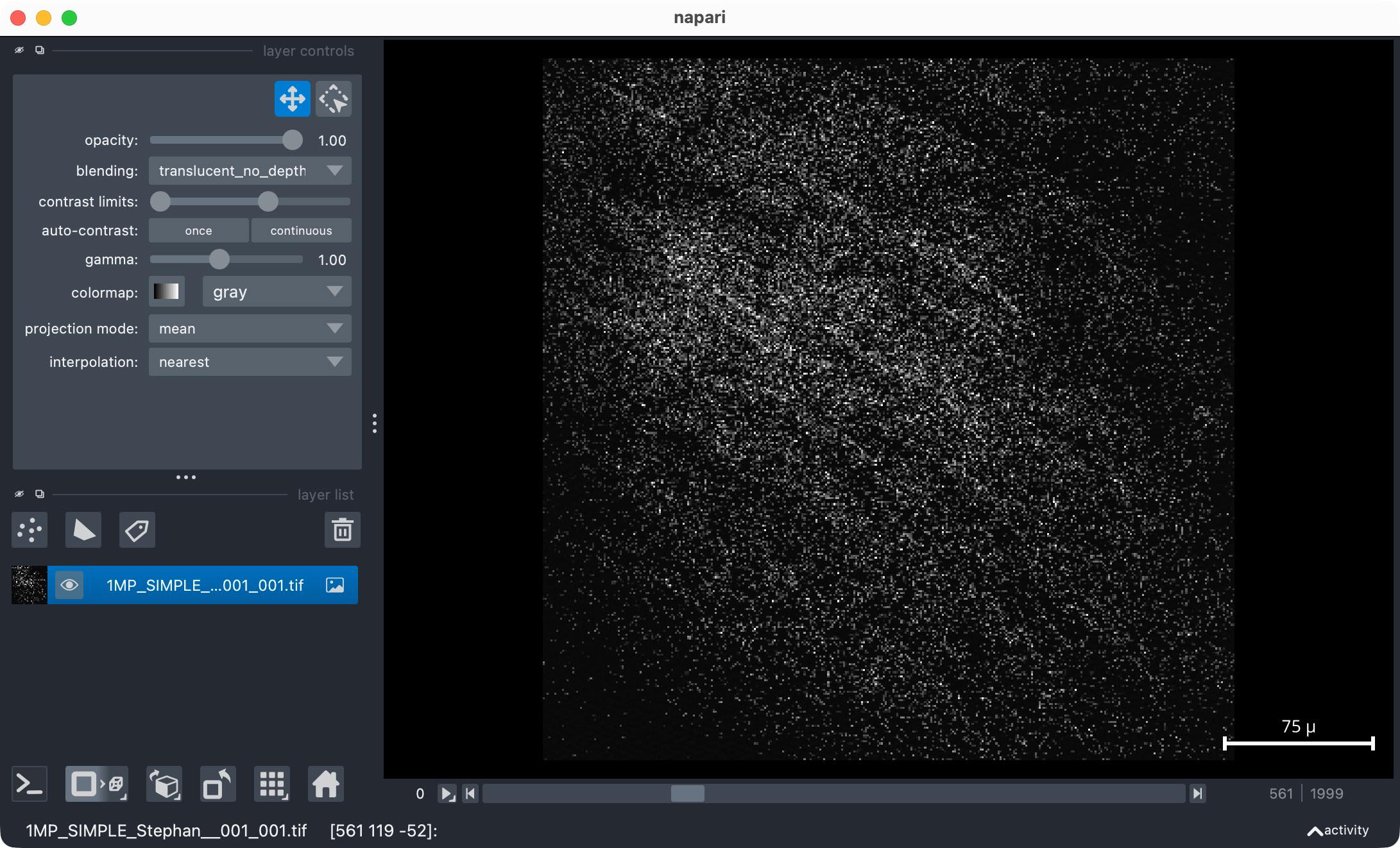
Note that if you have opened an image with napari in the same interactive session before,
OMIO will reuse the existing napari viewer instance to avoid opening multiple windows.
In practice, any new image opened with om.open_in_napari will be added as a new layer
to the existing napari viewer.
Reuse an Existing On-Disk OMIO Cache
If you repeatedly open the same large file with zarr_store="disk", OMIO can reuse
an already existing, validated cache store instead of rebuilding it from the original
image each time. This is useful for iterative interactive work on large files.
When OMIO creates a disk-backed cache, it also stores the OMIO metadata and a cache
manifest directly in the Zarr attributes. On later reads, reuse_disk_cache=True
instructs OMIO to validate that manifest against the current source file and read
settings before reusing the cache.
fname = "example_data/tif_files_from_3P_paper/Supplementary_Video_4.tif"

# Start from a clean state so the first call definitely builds the cache:
om.cleanup_omio_cache(fname, full_cleanup=False)

# First call: creates .omio_cache/<basename>.zarr and stores OMIO cache metadata in it.
image_cache_1, metadata_cache_1 = om.imread(fname, zarr_store="disk")
print(f"First read shape: {image_cache_1.shape}, axes: {metadata_cache_1.get('axes', 'N/A')}")
print(image_cache_1.attrs["omio_cache_info"])

# Second call: reuses the existing validated disk cache instead of rebuilding it.
image_cache_2, metadata_cache_2 = om.imread(
    fname,
    zarr_store="disk",
    reuse_disk_cache=True,
)
print(f"Second read shape: {image_cache_2.shape}, axes: {metadata_cache_2.get('axes', 'N/A')}")
print(image_cache_2.attrs["omio_cache_info"]["source_path"])
If the source file changed, or if relevant settings such as explicit physical pixel size overrides no longer match, OMIO automatically falls back to rebuilding the cache from the original image instead of reusing a stale store.
There is intentionally no automatic cleanup of the temporary Zarr stores, as users may want to reuse them for downstream processing. To manually clean up the temporary Zarr stores created by OMIO, use:
om.cleanup_omio_cache(fname, full_cleanup=False)
This command cleans up only the temporary Zarr store associated with the given
fname. To clean up all temporary Zarr stores created by OMIO, use:
om.cleanup_omio_cache(fname, full_cleanup=True)
Efficiently View Large Images in Napari With OMIO’s DASK Support
To efficiently view large images in napari without loading the entire dataset into memory, you can use OMIO’s built-in support for lazy loading and combine it with OMIO’s napari integration. This integration supports:
handling of in-memory and on-disk memory-mapped Zarr arrays
automatic axis reordering based on OME semantics
DASK support for out-of-core parallel processing
The following example uses a 1.1 GB 3D image stack with multiple channels:
fname = "example_data/tif_files_from_3P_paper/Supplementary_Video_4.tif"
First, memory-map the image on disk:
image_large, metadata_large = om.imread(fname, zarr_store="disk", reuse_disk_cache=True)
This stack has stored an erroneous PhysicalSizeZ in its ImageJ metadata, which is set
to 0.0000185 microns instead of the correct value of 5 microns according to the
supplementary information of the paper. Thus, let’s correct the corresponding metadata
entry so that napari can correctly scale the Z axis upon viewing:
metadata_large["PhysicalSizeZ"] = 5 # in microns
Now open the large image in napari without DASK support:
om.open_in_napari(image_large, metadata_large, fname, zarr_mode="zarr_nodask")
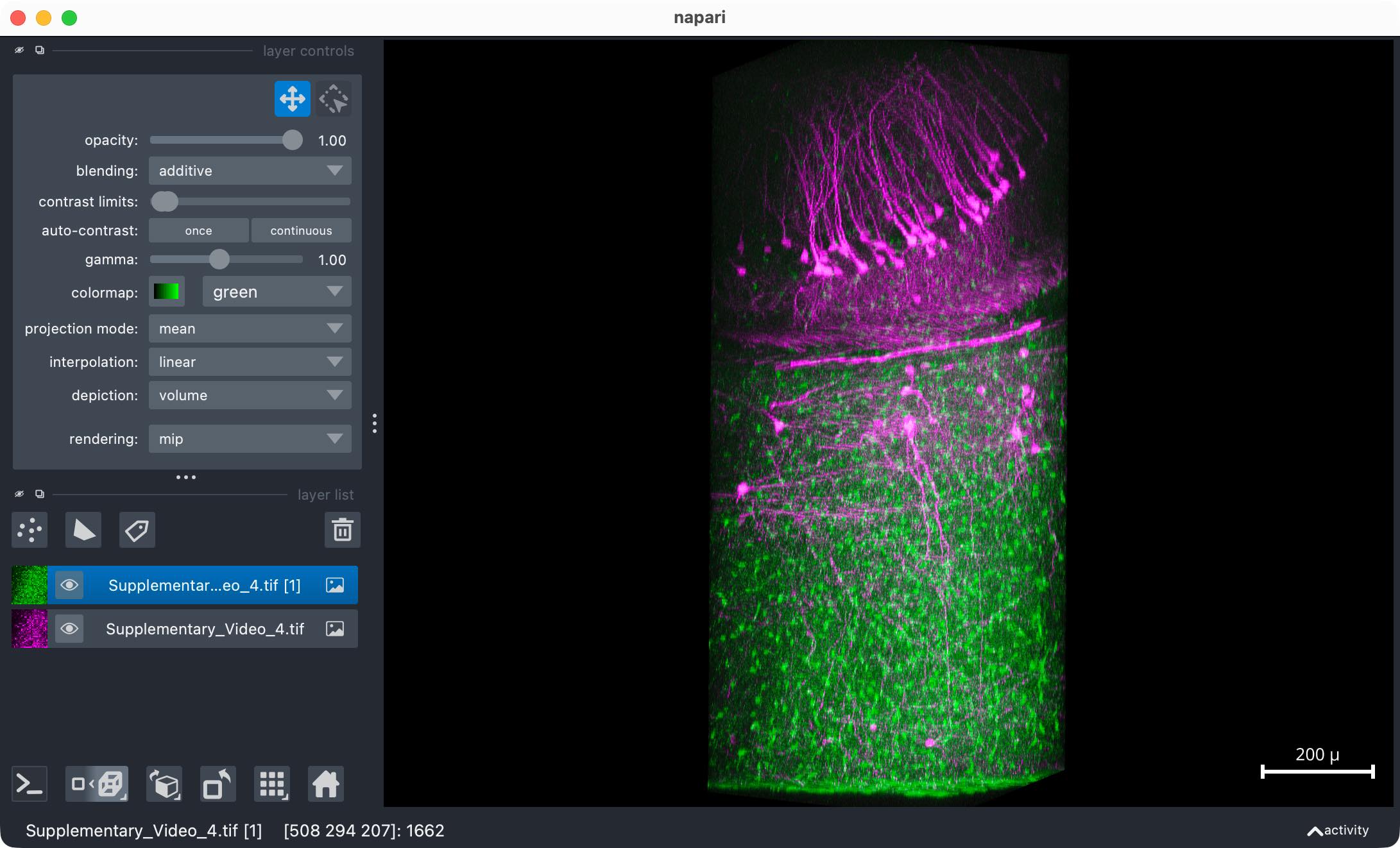
Internally, OMIO’s napari viewing function correctly handles the true image scalings and
axes, but needs to re-arrange the axes to the napari-expected order. Without DASK, this
may take some time for very large images, as a temporary Zarr store is created with the
re-ordered axes. This temporary store is created in the same .omio_cache folder as before.
To speed up this process, OMIO provides zarr_mode="zarr_dask" to use DASK for
parallelized re-ordering and writing of the temporary Zarr store:
om.open_in_napari(image_large, metadata_large, fname, zarr_mode="zarr_dask")
With returns=True, the napari viewer instance, the created napari layers, the used
Zarr array, and the used axes order are also returned for further programmatic use:
napari_viewer, napari_layers, napari_datas, napari_axes = om.open_in_napari(
    image_large,
    metadata_large,
    fname,
    zarr_mode="zarr_dask",
    returns=True)
After finishing the inspection, the temporary Zarr stores can be removed manually:
om.cleanup_omio_cache(fname, full_cleanup=True)